Pipeline management is the operational core of Bigin CRM by Zoho. Instead of entering leads in endless spreadsheets or complex database tables, Bigin organizes sales cycles into visual, Kanban-style stages for small businesses. Every deal appears as an actionable card displaying deal value, key contacts, and upcoming follow-ups at a glance. Sales reps can simply drag cards across customizable milestones as conversations progresses.
As the Bigin CRM for small businesses offers good pipeline management features, let’s check out the deeper look at how reps can make most of the software and create more conversions.
What is a Pipeline in Bigin CRM?
A pipeline in Bigin CRM is a visual Kanban board representing all the deals that are in progress in a sequential view. Rather than managing opportunities through static spreadsheets or isolated database rows, a pipeline displays deals as interactive cards that progress horizontally across defined milestones.
Also Read: 7 Step Lead Management Software by Pipedrive Ensures Revenue Growth
How does a Pipeline work in Bigin CRM?
While managing a deal in Bigin CRM, reps follow a visual, left-to-right progression where each stage triggers specific operational actions, communication logs, and automation rules.
Here is how a standard deal moves from initial capture to close, and how a sales representative interacts with Bigin at each step:
Step 1: New Lead Captured
An inquiry enters the system automatically when a client submits a website form, sends an email, or messages your Business WhatsApp. At that same time, Bigin generates a unified Contact record and creates a connected deal card in the New Lead column.
Step 2: First Contact Made
The rep initiates a two-way communication to introduce the offering and start the conversation.
Step 3: Lead Qualification & Assessment
The rep holds a discovery call with the client to evaluate whether they have the appropriate budget, authority, operational need, and timeline (BANT) to buy.
Step 4: Proposal Sent (Scoping & Pitching)
The scope of work, service tiers, or product packages are assembled into a formal commercial proposal and delivered to the prospect.
5. Negotiation (Handling Objections & Terms)
The client reviews the quote and requests scope adjustments, contract revisions, or price discounts before signing.
6. Closed-Won / Closed-Lost (Final Resolution)
At last, the customer either signs the agreement and pays, or decides to pass on the offer. If the deal is Closed-Won, the rep drags the card into Closed-Won. Then rep sends a Payment Link or generates an invoice directly via the Zoho Invoice integration.
After that, the Connected Pipelines walk in to automatically generate a new card in the Customer Onboarding pipeline, reassign ownership to the implementation manager, and create a checklist of onboarding tasks.
If Closed-Lost, a mandatory pop-up requires the rep to select a Loss Reason (e.g., Price, Competitor, Budget Frozen). This data flows into Bigin’s Analytics Dashboards, where managers and Zia Agents review deal loss trends to refine future sales strategies.
Also Read: What is Zoho CRM Goals? How Can You Master It?
How to Create Pipelines in Bigin CRM?
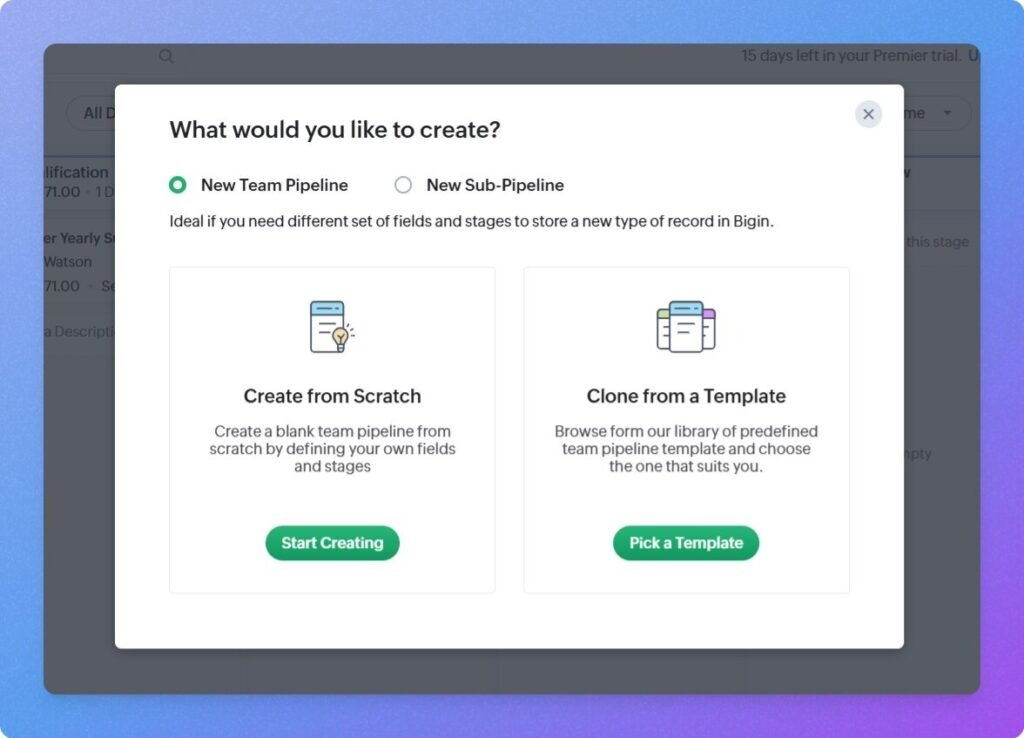
To Add a new pipeline, click on the pipeline icon in the far top left corner. Then select ➕icon adjacent to the Team Pipelines heading.
You can create a pipeline from scratch and use a premade Bigin template as well. Building from scratch gives you full control over stages, fields, and permissions.
Features of Pipeline Management
- Custom Record Terminology: Reps can assign their terms to any record in the pipeline. For eg Deals for sales, Job Cards for service, or Accounts for renewals.
- Add Pipeline-Specific Fields: You can assign specific custom fields and product line items to a pipeline without cluttering other department views.
- View/Edit Permissions: Admins can designate which user roles or profiles have view and edit permissions for each pipeline.
Using Multiple Pipelines for Products, Teams, and Processes
Bigin allows businesses to run multiple pipelines simultaneously without creating separate disconnected software accounts. This is accomplished using Team Pipelines and Sub-Pipelines.
Sub-Pipelines vs. Team Pipelines
- Team Pipelines: These are entirely separate operational spaces with distinct record types, fields, and access profiles (e.g., Sales vs. Customer Onboarding).
- Sub-Pipelines: Live within a single Team Pipeline, these handle variations of the same general process. For example, inside your primary Sales pipeline, you can create sub-pipelines for New Business, Contract Renewals, and Partner Referrals, allowing team members to switch between sales channels using a simple top-level dropdown.
How to Add Stages in Pipelines?
To add stages, click on the settings icon ‘⚙️’ on the top right corner of the Bigin dashboard, then select the ‘Stages’ option in the menu list in the right side of the screen.
Setting Stage Types and Probabilities
Every stage is destined to reach either Open or Closed. Open stages can be assigned with a winning probability percentage (e.g., Discovery = 20%, Proposal = 60%). Bigin uses these percentages to calculate the deals chances to get converted to Won and forecast revenue and sales.
Kanban Layout Controls
You can reorder stages by dragging them horizontally, resize column widths to fit varying deal volumes, or collapse inactive stages to save screen space.
Customizing Stages for Different Sales Processes
Sales cycles vary widely by business model from start to won/closed stage. A high-volume transactional sale requires a short, 3-stage board (New Inquiry > Quoted > Paid), while a consultative B2B contract requires deep discovery, endless meetings, multi-stakeholder proposals, and legal reviews.
Bigin provides governance tools to enforce consistency across custom stages:
- Stage Transition Rules: Admins can set mandatory checkpoints that must be fulfilled before a card progresses towards deal closure (Won/Loss). For example, moving a deal from Needs Audit to Proposal Sent can require the user to fill in an estimated contract value, upload a scope-of-work PDF, and complete a qualification checklist.
- Restrict Direct Deal Closure: To prevent reps from cutting corners, you can lock specific early stages so deals cannot be marked Closed-Won directly without passing through key intermediate validation stages.
- Stage-Specific Automations: You can configure background rules that are triggered based on stage entry. Such as, automatically sending an intake questionnaire when a deal enters Discovery or assigning a follow-up task if a deal stays in Proposal Sent longer than 7 days.
Also Read: Pipedrive CRM VS Capsule CRM: Features, Pricing & Winner
Pipeline Automation
This feature offers event based workflow rules to your deal progress. Reps can automate stage update, assign follow-up tasks, trigger client emails, and sync records to eliminate any manual input as deals move toward closing.
Use Case
Consider a digital agency managing client web design projects as a use case.
When a client submits a lead form on the agency’s website, Bigin’s automation feature instantly assigns the lead to a rep and fires an automated email containing a calendar link to schedule a first interaction call.
Once the sales rep sends the deliverables and drags the deal to Proposal Sent, a time-delayed trigger monitors the lead engagement. If the quote remains unapproved for four business days, Bigin automatically creates a high-priority follow-up task for the rep.
The most transformative automation happens when the deal is marked as ‘close’. When the rep marks the deal Closed-Won, Bigin’s Connected Pipelines feature triggers immediately. The system automatically creates a card in the Client Onboarding pipeline, reassigns ownership to the project manager, sends an initial deposit invoice through native Zoho Invoice integration, and emails the client a secure File Cabinet link to upload their brand assets.
This automated workflow reduces lead response times to seconds, prevents stalled proposals from slipping through the cracks, and delivers a zero-friction handoff between sales and operations without any manual data entry.
How to Manage Deals in Bigin CRM?
Once a rep creates a pipeline management structure, CRM work shifts from configuration to active deal execution. Sales reps and managers spend the vast majority of their time inside individual deal records, advancing opportunities, capturing customer context, and ensuring consistent follow-ups.
1. Creation of Deals
The deals in Bigin CRM, which are often referred to as leads, are revenue opportunities that can be created using any one of the four major entry points.
- In-Column Quick Add: By clicking on the ‘➕’ button in the top right of pipeline screen. Reps can create deals right inside the stage, filling only four mandatory fields including deal name, deal amount, contact, and deal close date.
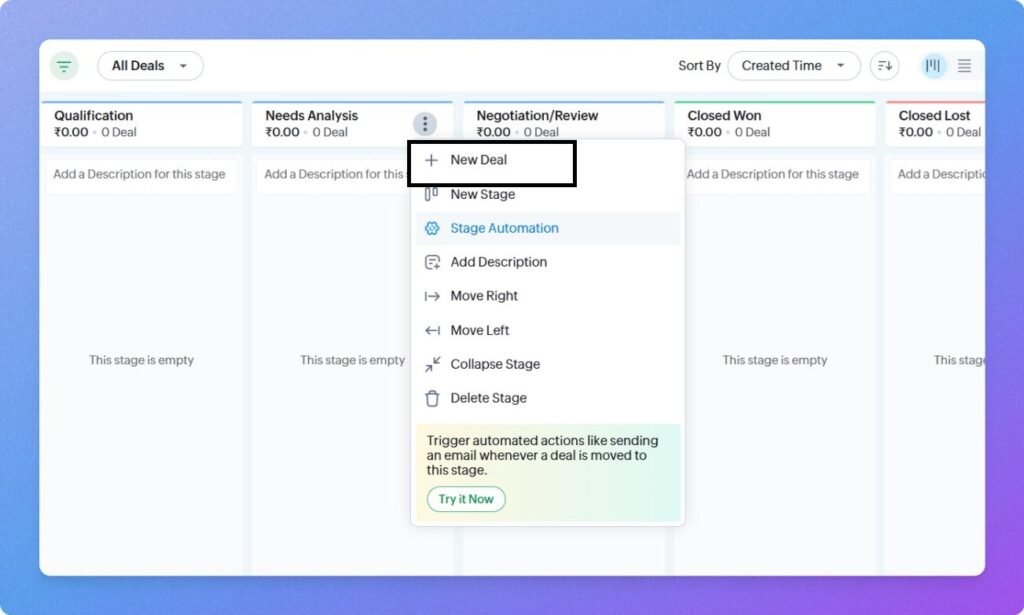
- Top Navigation Bar: By clicking the ‘➕’ button available in the top navigation bar, the user can create a full-fledged deal record where all custom fields are filled.
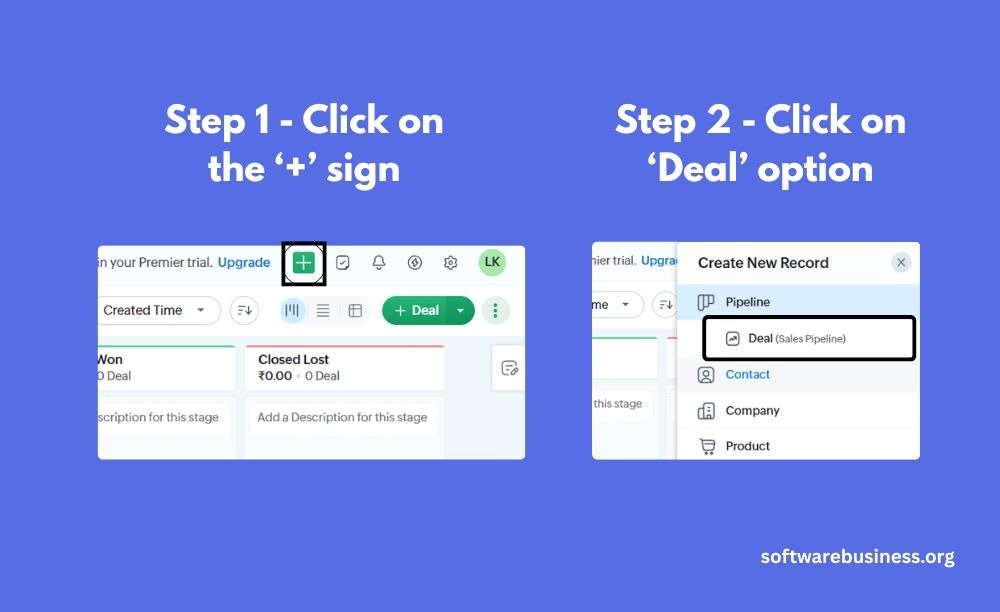
- Automated Creation: Deals submitted by users via website inquiry forms, incoming emails through the Email-In topping, and WhatsApp messaging are autofilled with contact card reaction.
- Bulk Import: Sales teams using spreadsheets for CRM can use bulk imports of deals in CSV or XLSX file formats.
Also Read: 6 Features in Pipedrive Email Tracking That Keeps Every Sales Interaction Organised
2. Assigning Deals to Contact Cards
When any deal is added in the Bigin dashboard, it requires to connect it with a Deal Owner who is responsible for driving the sale forward.
- Manual Assignment: Deals can be assigned upon creation or reassigned at any time via the deal owner dropdown on the card.
- Automated Round-Robin: Using Bigin’s workflow rules, inbound leads can be evenly distributed among sales reps in a rotating round-robin sequence.
- Criteria-Based Routing: Rules can route high-value inquiries (e.g., deals over $10,000) or specific geographic regions directly to senior account executives.
3. Moving Deals Between Stages
As conversations progresses towards a closure, users push opportunities through the sales cycle:
- Kanban Drag-and-Drop: Reps click and drag deal cards from one column to the next across the board to change the deal status.
- Detail Page Stage Bar: Inside an opened deal card, clicking any chevron on the stage progression bar updates its status instantly.
- Stage Transition Rules: To ensure data integrity, admins can make any specific fields mandatory at specific transitions. For example, moving a deal into Proposal Sent can require the rep to fill out the Quote Amount and attach a proposal document before the move is permitted.
4. Defining Expected Closing Dates
The Closing Date in the CRM helps in better sales forecasting and cash flow planning.
- Forecasting Accuracy: Bigin groups pipeline totals by expected closing month or quarter, allowing business owners to see projected revenue.
- Deal Rotting Indicators: If a deal stays open crossing its expected closing date, Bigin flags the card with a visual red alert to signal reps and managers that the deal has stalled and requires immediate attention.
Also Read: odoo vs ZOHO CRM: What You Didn’t Knew Till Now?
5. Adding Notes and Internal Context
The Notes section helps reps to get a full context of the deal instantly without communicating to other team members and going through the past inbox.
- Call & Meeting Takeaways: Reps record customer pain points, competitor mentions, and timeline constraints.
- File Attachments: Pitch decks, custom quotes, and client specifications can be pinned directly to individual notes.
- Team @Mentions: Typing @teammate notifies colleagues within the CRM, allowing reps to ask pricing questions or loop in technical specialists without sending internal emails.
6. Managing Tasks, Calls, and Follow-ups
A deal should never sit in a pipeline without a predefined next step to perform.
- Scheduling Calls and Meetings: Reps schedule outbound calls or Zoom/Zoho Meeting video sessions directly from the deal view, which syncs to their calendar.
- To-Do Tasks: Reps can create time-sensitive tasks (e.g., “Send revised contract by Thursday”). Overdue tasks flag the deal card with warning badges.
- Activity History: Completed tasks, logged phone calls, and email open signals appear sequentially in the timeline, providing a comprehensive audit trail of customer engagement.
7. Marking Deals as Won or Lost
The final step of the sales pipeline resolves the opportunity:
- Marking as Won: Dragging a card to Closed-Won locks the deal record and can trigger Connected Pipelines to instantly generate a project card on the onboarding or service fulfillment board. It also enables one-click invoice creation via Zoho Invoice.
- Marking as Lost: Dragging a deal to Closed-Lost triggers a mandatory Reason for Loss dropdown (e.g., Price, Competitor, Unresponsive, Feature Gap). This data feeds directly into Bigin’s loss-analysis dashboards, helping teams identify and fix conversion bottlenecks.
Mastering pipeline management in Bigin transforms unstructured sales efforts into a predictable, repeatable revenue engine for small businesses. By replacing spreadsheets with visual Kanban boards, customizable stage gates, and automated follow-ups, small businesses and solopreneurs will gain complete clarity over their sales velocity. The platform’s true operational advantage lies in how effortlessly it bridges the gap between closing deals and executing fulfillment through Connected Pipelines. Bigin’s pipeline architecture provides the ideal framework to scale sustainably to all seeking organused sales data management.